New: Convert AI-Built Sites to WordPress from Cursor, Claude, or Your Terminal
WPConvert now supports CLI, API, and MCP access so developers can convert AI-built websites into installable WordPress themes from their existing workflow — without leaving Cursor, Claude, or the terminal.
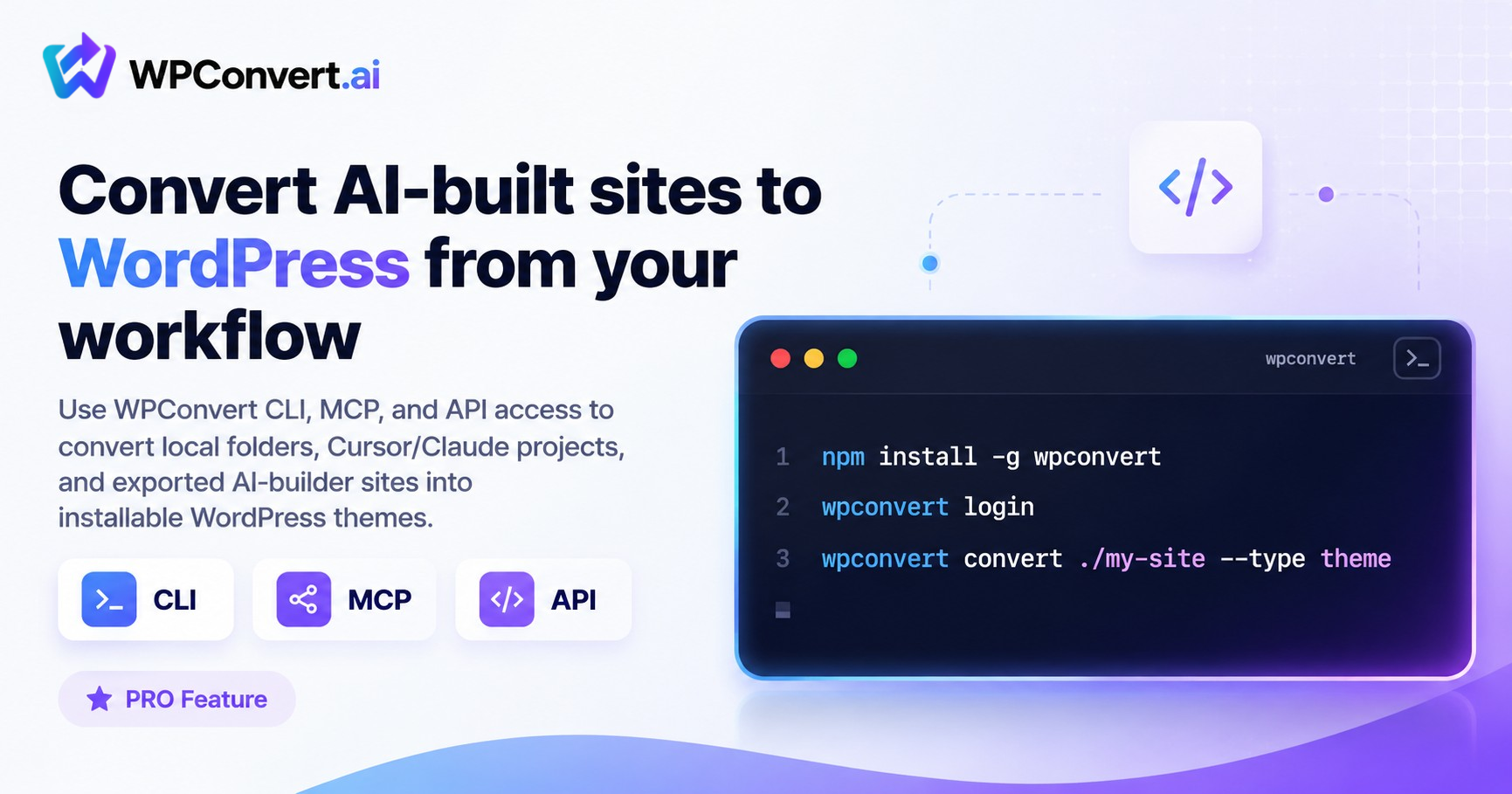
AI tools make it easy to spin up beautiful websites in minutes. Cursor, Claude, Lovable, v0, Replit, Bolt — pick your builder, describe what you want, and you have a real project on disk.
But turning that project into a real WordPress theme still creates friction. Export files. Zip folders. Upload in a browser. Wait. Download. Repeat for every client prototype.
WPConvert now supports CLI, API, and MCP access so Pro and Agency users — and anyone with pay-as-you-go credits — can convert projects from their terminal, IDE, or automated workflows. One command (or one sentence to your AI assistant), and you get back an installable WordPress theme.
Summary (TL;DR): Install the wpconvert CLI, create an API key in your dashboard, run wpconvert convert . --type theme from your project folder, and WPConvert safely zips your site, runs the conversion, and downloads the finished theme. Add the MCP server to Cursor or Claude and you can convert by asking in plain English. Same credits as the dashboard — no separate billing. Preview the result in WordPress Playground with wpconvert preview <jobId>.
What launched
Three ways to convert without opening the browser:
| Tool | What it does |
|---|---|
| CLI | Convert a local folder from your terminal — ideal for freelancers, agencies, and CI pipelines |
| MCP | Let Cursor, Claude Desktop, or other MCP-compatible assistants call WPConvert for you |
| API | Automate conversions from custom workflows, internal tools, or agency systems |
All three use the same conversion engine as the web dashboard. Same output quality. Same credits. Same refund rules if a conversion fails.
The command that does it
This is the workflow developers care about:
npm install -g wpconvert
wpconvert login
wpconvert convert . --type theme
That's it. From your project folder:
- WPConvert finds the right files — your site root or a built
dist//build/folder - Zips safely — excludes
node_modules,.git, build caches, and secrets like.envby default - Uploads and converts — same pipeline as the dashboard
- Downloads the theme — a ready-to-install
.ziplands in your current directory
Not sure what will be uploaded? Run a dry run first:
wpconvert convert . --dry-run
For React, Vite, Next, or Astro projects, build first (npm run build), then convert. The CLI auto-detects the output folder.
Other useful commands:
wpconvert status <jobId>                # check progress
wpconvert download <jobId>              # re-download a finished theme
wpconvert preview <jobId> --open        # preview in WordPress Playground
wpconvert quota                         # see remaining credits
Preview in WordPress Playground — without the dashboard
After a conversion finishes, you can preview the theme in a live, in-browser WordPress — no local install required:
wpconvert preview <jobId>
This creates a temporary WordPress Playground session with your theme installed and activated — the same interactive preview you get in the dashboard. Add --open to launch it in your default browser.
Preview links expire after about 30 minutes and are use-limited, so treat them as sensitive (especially in shared CI logs).
Using WPConvert from Cursor or Claude (MCP)
Don't want to memorize commands? Add the WPConvert MCP server once, then ask your assistant:
"Convert this folder into a WordPress theme."
The MCP server (@wpconvert/mcp) handles zipping, uploading, polling status, and downloading the result. Typical flow:
wpconvert_convert_folder→ returns ajobIdwpconvert_check_status→ poll untildonewpconvert_download_result→ saves the theme.zipto disk- Optional:
wpconvert_create_preview→ get a Playground URL to view it live
Setup takes about two minutes. Full instructions are on the Developers page.
Credits and billing — same as the dashboard
Developer conversions use the exact same credit system as browser uploads. No separate metering. No surprise pricing.
- Pro — monthly conversion credits; each successful conversion uses 1 credit
- Agency — unlimited conversions on your plan
- Pay-as-you-go (PAYG) — use available PAYG credits when you have them; same Pro-tier output
Failed conversions are refunded automatically. Your API key stays active if you run out of credits, but new conversions are blocked until you add more credits or your monthly quota resets.
Create your API key under Dashboard → API & CLI after upgrading to Pro or Agency (or buying PAYG credits).
Who this is for
Cursor and Claude users
Build with AI in your editor, then convert without context-switching. Ask your assistant to run the conversion, or run one terminal command yourself.
Freelancers
Turn client prototypes — Lovable exports, v0 layouts, Replit apps, static HTML — into WordPress themes in minutes instead of rebuilding by hand.
Agencies
Wire conversions into your delivery workflow. Run them from a shared script, an internal dashboard, or a CI step so WordPress themes drop out automatically at the end of a build.
Automation and internal tools
Use the HTTP API to submit jobs, poll status, download completed themes, and create Playground preview sessions on demand. Same auth (X-API-Key), same endpoints the CLI and MCP use under the hood.
Your code stays safe
The CLI is designed for real projects on real machines — not toy demos.
Excluded by default:
.env,.env.local, and other secret files- Private keys (
*.pem,*.key) .npmrc,.ssh/node_modules,.git, build caches, OS junk
Your .gitignore is honored. Symlinks are never followed. You can run --dry-run to see exactly what would be uploaded before anything leaves your machine.
In CI, prefer the WPCONVERT_API_KEY environment variable over storing keys in repo config. Avoid printing Playground preview URLs in shared build logs — they grant temporary access to your theme until they expire.
Works with the AI builders you already use
WPConvert CLI and MCP work with projects from:
- Cursor — Vite, React, Next, Astro, or plain HTML
- Claude / Claude Code — generated sites and MCP-driven conversions
- Lovable — export from GitHub, convert locally
- v0 — download the project, convert the built output
- Replit — static sites and Vite apps
- Bolt, Framer, Webflow — static exports and built folders
If it runs in a folder on your machine, you can convert it.
FAQ
Who can use the CLI, API, and MCP?
Anyone on a Pro or Agency plan, or anyone with available pay-as-you-go credits. Create an API key in your dashboard under API & CLI.
Do CLI conversions cost extra?
No. They use the same credits as dashboard conversions. One successful conversion = one credit (Agency is unlimited). Failed conversions are refunded.
Which export formats are supported?
The CLI and MCP currently produce standard WordPress themes (.zip) — the same high-fidelity output as the web app. Elementor and Gutenberg exports are coming soon.
Can I convert from Cursor without using the terminal?
Yes. Add the WPConvert MCP server to Cursor and ask your assistant to convert the project. The assistant calls the same API the CLI uses.
How do I preview a conversion from the terminal?
Run wpconvert preview <jobId> after a conversion completes. This opens your theme in WordPress Playground — a live in-browser WordPress with your theme installed.
Get developer access
CLI, API, and MCP access are available on WPConvert Pro and Agency. PAYG users can use developer tools with available credits.
Or open Dashboard → API & CLI if you're already on Pro or Agency.