How to Convert a Framer Website to WordPress
Learn how to convert your Framer website into a fully installable WordPress theme using WPConvert.ai. No rebuilding required — export your project, upload the ZIP, and download your WordPress theme.
How to Convert a Framer Website to WordPress (Complete Guide)
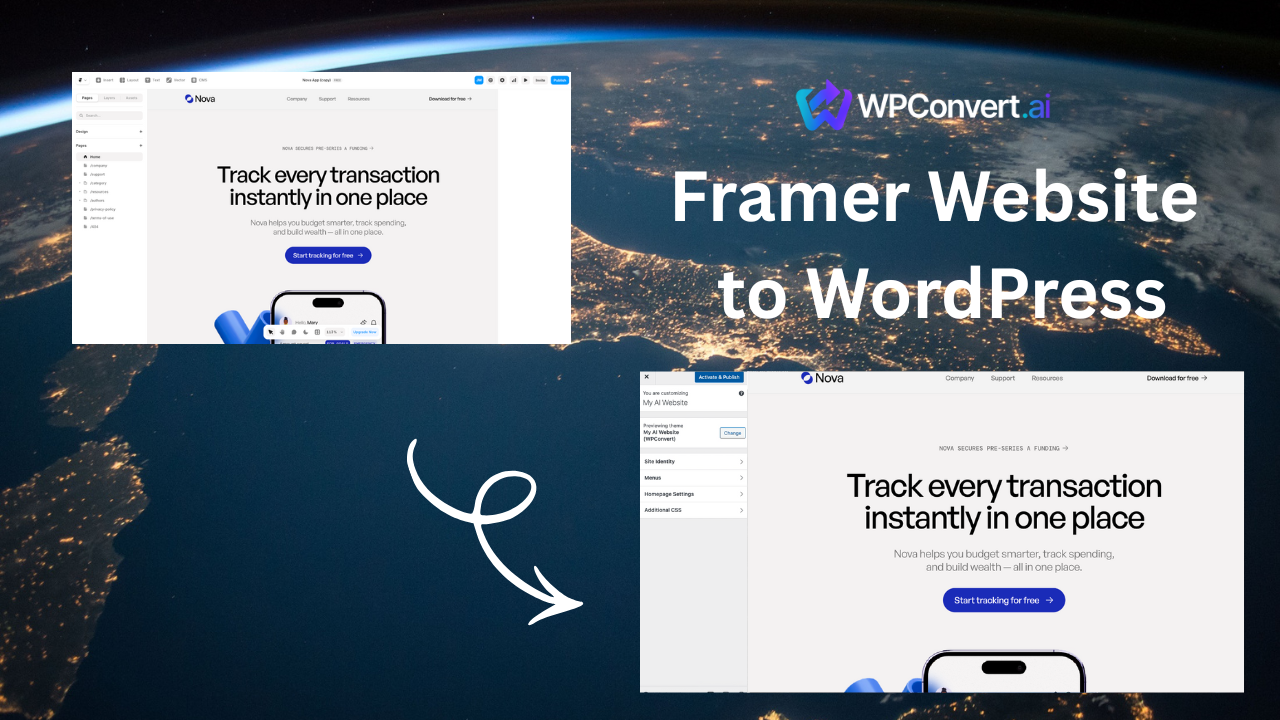
Replace with: screenshot of Framer site + WPConvert result.
Framer is one of the most popular website builders for designers and startups. Its visual editor and animation tools make it easy to launch beautiful, interactive websites in minutes.
But eventually, many Framer users hit limitations:
- Need WordPress plugins
- Need SEO tools
- Need CMS features
- Need scalability
- Need hosting flexibility
- Need ownership beyond monthly Framer hosting
The good news?
You can convert your Framer website into a fully installable WordPress theme using WPConvert.ai, without manually rebuilding layouts or templates.
This guide shows you exactly how to do it in a few minutes.
Why Convert a Framer Website to WordPress?
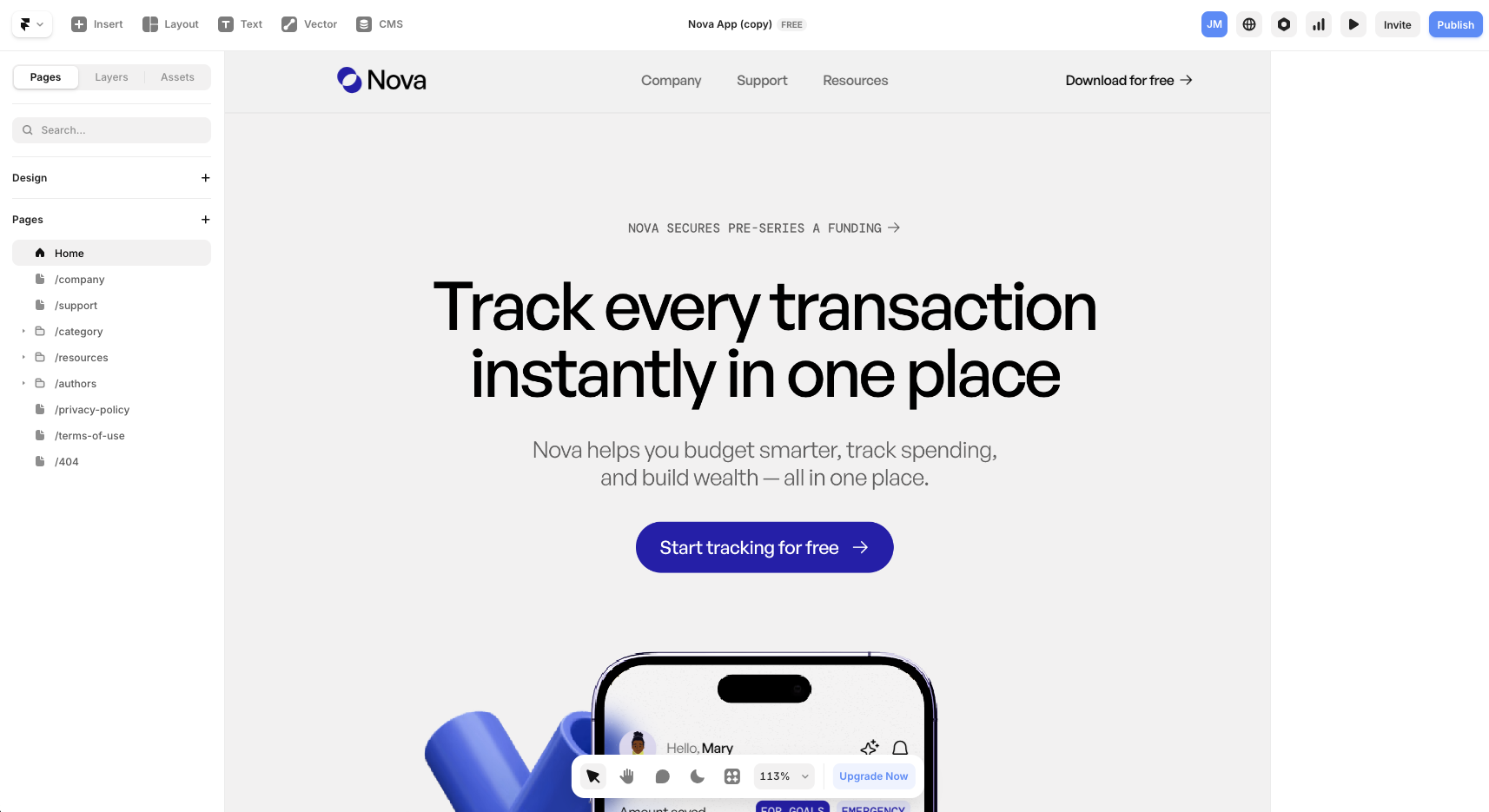
Framer is excellent for:
- design-focused teams
- landing pages
- portfolios
- startup websites
- animated/interactive sites
But Framer has limitations that WordPress solves instantly.
1. Plugins & Integrations
Framer does not support the massive WordPress plugin ecosystem:
- SEO plugins
- CRM integrations
- booking tools
- e-commerce
- membership systems
- LMS platforms
WordPress gives you all of these.
2. Cost & Ownership
Framer hosting can become expensive as your traffic grows, and you don't fully own your site.
With WordPress:
- You can host anywhere
- You own your files
- Scaling costs are predictable
3. SEO & Content Management
Framer's SEO tools are limited compared to:
- Yoast SEO
- RankMath
- Schema plugins
- Blog/CMS structure
- Custom fields
- Sitemaps
- Advanced meta control
WordPress is built for SEO-heavy sites.
4. Framer Sites Can Be Exported
While Framer doesn't have a built-in static export feature, you can use third-party tools like NoCodeXport or ToStatic Chrome extension to export your Framer site as HTML/CSS/JS — exactly what WPConvert needs.
This makes Framer → WordPress conversion seamless.
What You Need Before Converting
Framer doesn't have a built-in static export feature, so you'll need to use a third-party export tool to download your site as static files.
We recommend using one of these tools:
Option 1: NoCodeXport
NoCodeXport is a web-based tool that converts your Framer site to static HTML/CSS/JS.
Option 2: ToStatic Chrome Extension
ToStatic is a Chrome extension that exports Framer sites directly from your browser.
Both tools will generate a ZIP file containing:
- HTML
- CSS
- JS
- images
- fonts
- animations
These are the exact files WPConvert uses to generate a WordPress theme.
How to Convert a Framer Website to WordPress
This is where WPConvert makes the process extremely simple.
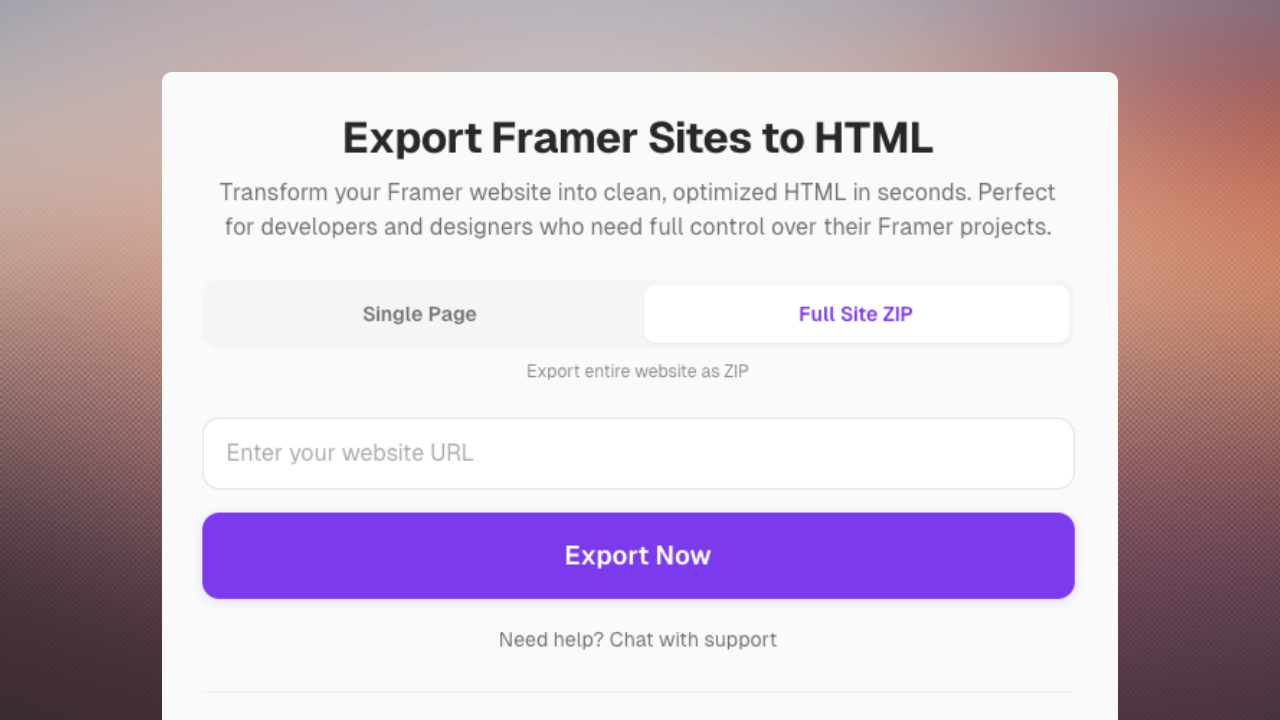
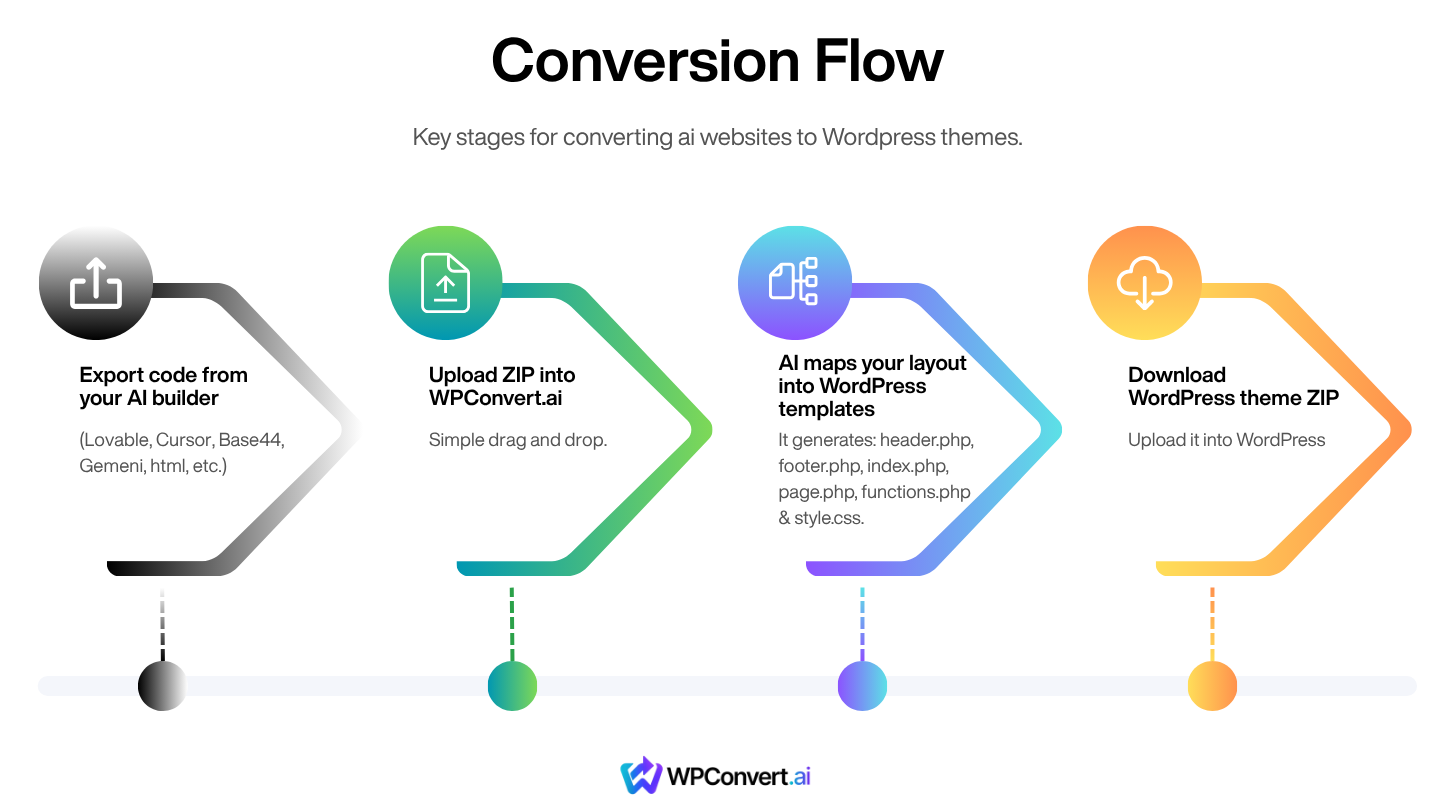
Step 1 — Export Your Framer Website
Since Framer doesn't have a built-in export feature, you'll need to use a third-party tool:
Using NoCodeXport:
- Go to NoCodeXport Framer tool
- Enter your Framer site URL
- Click "Export" and download the ZIP file
Using ToStatic Chrome Extension:
- Install the ToStatic Chrome extension
- Open your Framer site in Chrome
- Click the ToStatic extension icon
- Follow the prompts to export and download the ZIP file
Your exported ZIP will contain:
- index.html
- CSS files
- JavaScript files
- /assets/ folder
- fonts/
- images/
Step 2 — Upload the ZIP to WPConvert.ai
Go to https://wpconvert.ai and upload your exported Framer ZIP.
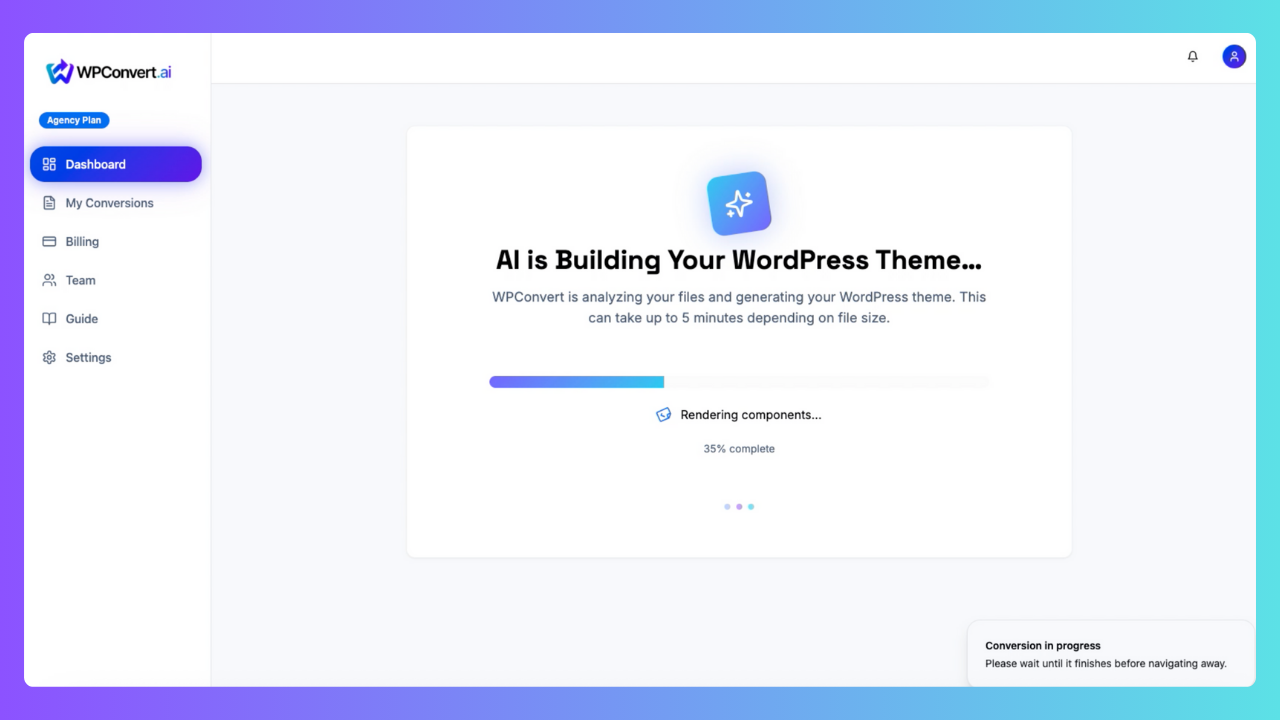
WPConvert automatically:
- detects that the upload is a Framer static export
- scans the HTML/CSS structure
- identifies header/footer/sections
- maps the layout into the proper WordPress template files
- extracts assets into an organized theme
- recreates your design with high fidelity
No coding required.
Step 3 — WPConvert Generates Your WordPress Theme
You receive a complete WordPress theme that includes:
header.phpfooter.phpindex.phppage.phpfunctions.phpstyle.css(theme metadata)/assets/css/assets/js/assets/images
WPConvert preserves:
- layout
- spacing
- animations
- responsive rules
- fonts
- colors
- interactions (client-side JS)
You're not rebuilding anything — you're converting automatically.
Step 4 — Install the Theme in WordPress
Go to your WordPress admin:
Appearance → Themes → Add New → Upload Theme
Upload the ZIP WPConvert generated.
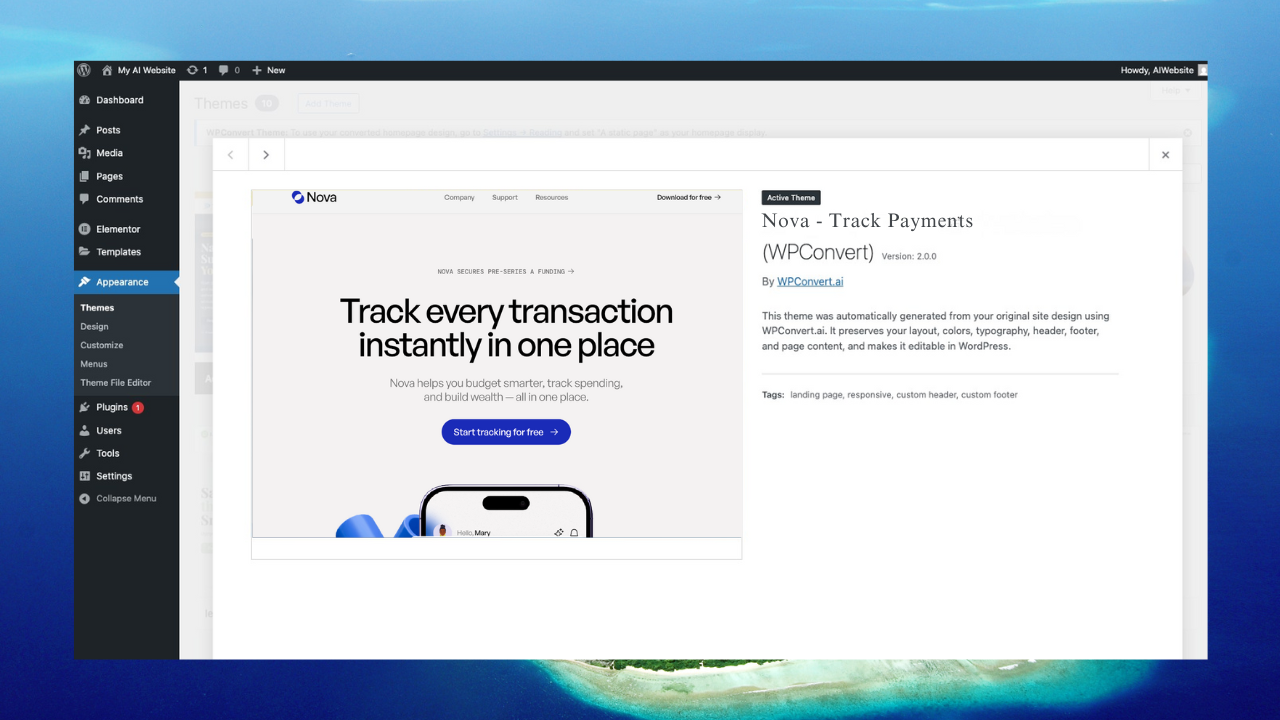
Your Framer website is now fully running on WordPress.
FAQ
Will my Framer site look the same in WordPress?
In most cases, yes — 90–95% fidelity. WPConvert preserves your layout, styling, and responsive design.
Does this work for every Framer export?
As long as you export using NoCodeXport or ToStatic, yes. These tools generate the static HTML/CSS/JS files WPConvert needs.
Can I edit my theme after converting?
Yes — it becomes a normal WordPress theme. You can edit PHP files, add plugins, customize styling, and modify functionality.
What about Framer animations?
Client-side JavaScript animations are preserved. Complex Framer interactions may need adjustment, but basic animations and transitions work.
Do I need to rebuild my content?
No. Your content, images, and structure are automatically converted into WordPress templates.
Conclusion
Framer is the fastest way to design.
WordPress is the most powerful way to deploy.
WPConvert.ai bridges the two — giving you the best workflow in 2026.