Convert Framer to WordPress — Companion Post
Framer exports convert cleanly to WordPress themes — but the full step-by-step workflow now lives on our canonical convert page. Here's the editorial context.
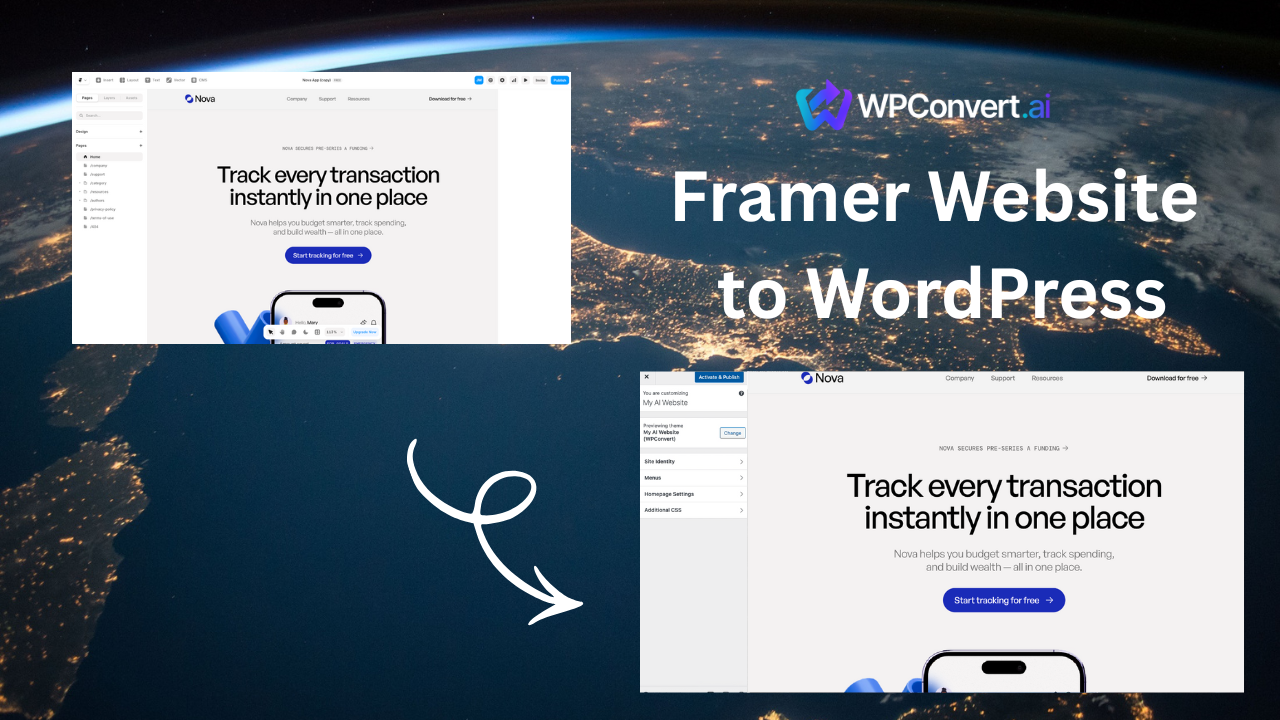
Framer sites are visually polished and export-ready — which makes them a strong fit for WPConvert. We originally published a long tutorial here when the product was early.
The canonical workflow is now maintained here:
That page owns export steps, upload instructions, install notes, and FAQ updates. This blog post is a companion: context, not the full manual.
When Framer → WordPress makes sense
Teams typically convert when they need:
- WordPress plugins (SEO, forms, WooCommerce, membership)
- Client hosting on standard WordPress stacks
- Editor access without Framer seat limits
- Long-term portability of the design as a theme
Framer remains great for design and prototyping. WordPress is the deployment layer many agencies standardize on.
What usually converts well
Representative Framer exports often preserve:
- Case study layouts and cover imagery
- Typography scale and section spacing
- Work index grids
- Static contact sections
Framer scroll animations and component-level motion are commonly simplified to CSS or static sections so content stays visible without the original runtime.
See Framer designer portfolio template for a documented example.
Pre-conversion checklist
Before uploading, review Optimize before conversion — pay attention to video embeds, custom fonts, and navigation markup.
FAQ
Where is the step-by-step guide?
Does motion carry over exactly?
Not always. WPConvert prioritizes layout fidelity and accessible static fallbacks over reproducing every scroll effect.
Related links
- Framer builder hub
- Migrate Framer to WordPress — if you're planning a structured move