WPConvert Editor Guide
Step-by-step guide to the WPConvert Editor — front-end editing for converted themes, highlight-to-link, editable regions, roles, and how saved content is stored.
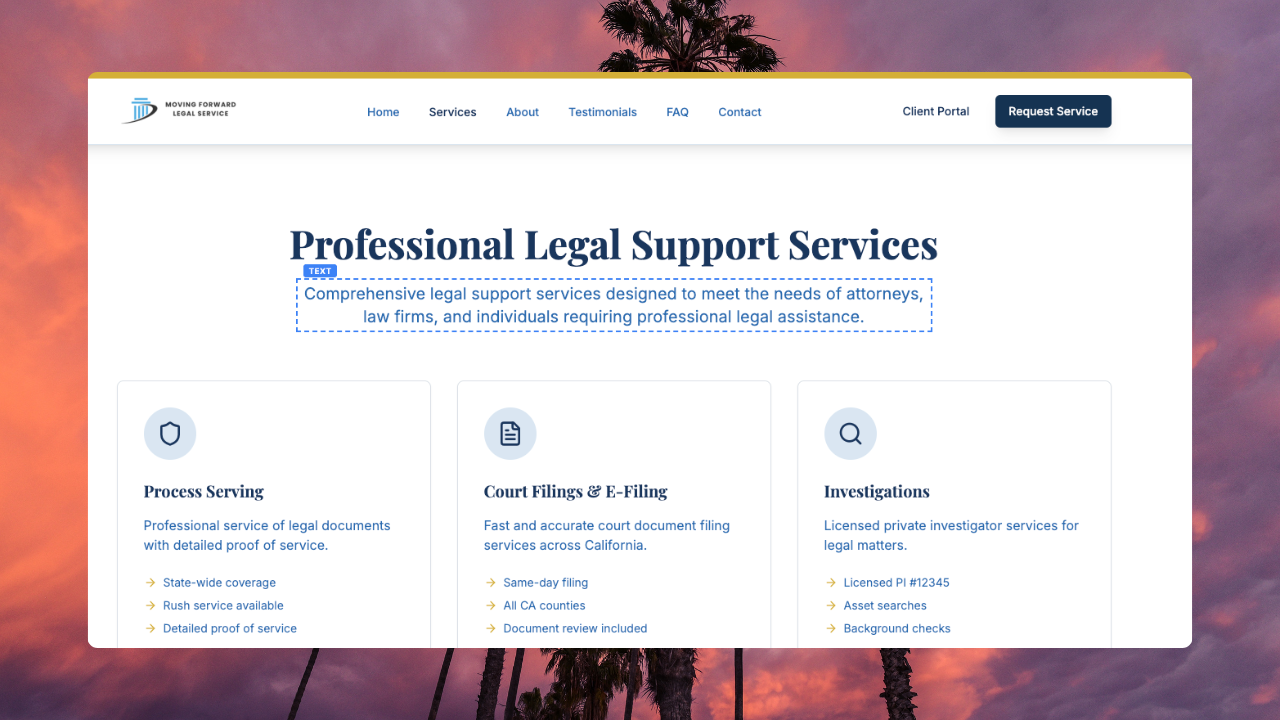
The WPConvert Editor lets you change content on converted WordPress themes from the front end — without Elementor, without rebuilding layouts, and without editing PHP templates for everyday copy updates.
Every WPConvert theme includes the editor bundled in the theme at inc/wpconvert-editor.php. You do not install a separate plugin for basic editing. After you activate the theme, log into WordPress and open your live site to start editing.
This guide is the canonical reference for how the editor works, what you can edit, and how to hand off editing to clients.
How the WPConvert Editor works
During conversion, WPConvert marks content regions in your theme HTML with stable attributes:
data-wpc-id— unique ID for each editable regiondata-wpc-editable— element type (heading,text,image,button,link,list,section,video, and more)
When a visitor loads a page, the theme outputs normal HTML. If you are logged in and enter edit mode, the editor:
- Captures the HTML via an output buffer
- Loads saved edits from the WordPress database (
wpconvert_editsoption) - Applies overrides via pattern replacement so saved text, URLs, images, and visibility replace the original content in the right places
Layout files stay untouched. PHP templates and CSS are not rewritten for content changes. Only the rendered output is overridden at render time — so spacing, breakpoints, and nesting stay intact.
Open the editor
- Install and activate your converted WPConvert theme (Appearance → Themes → Upload Theme).
- Log in to WordPress as an Administrator or Editor.
- Visit your live site (front page or any converted page).
- Click Edit Content in the admin bar (Pro/Agency themes) or WPConvert Editor (Starter themes).
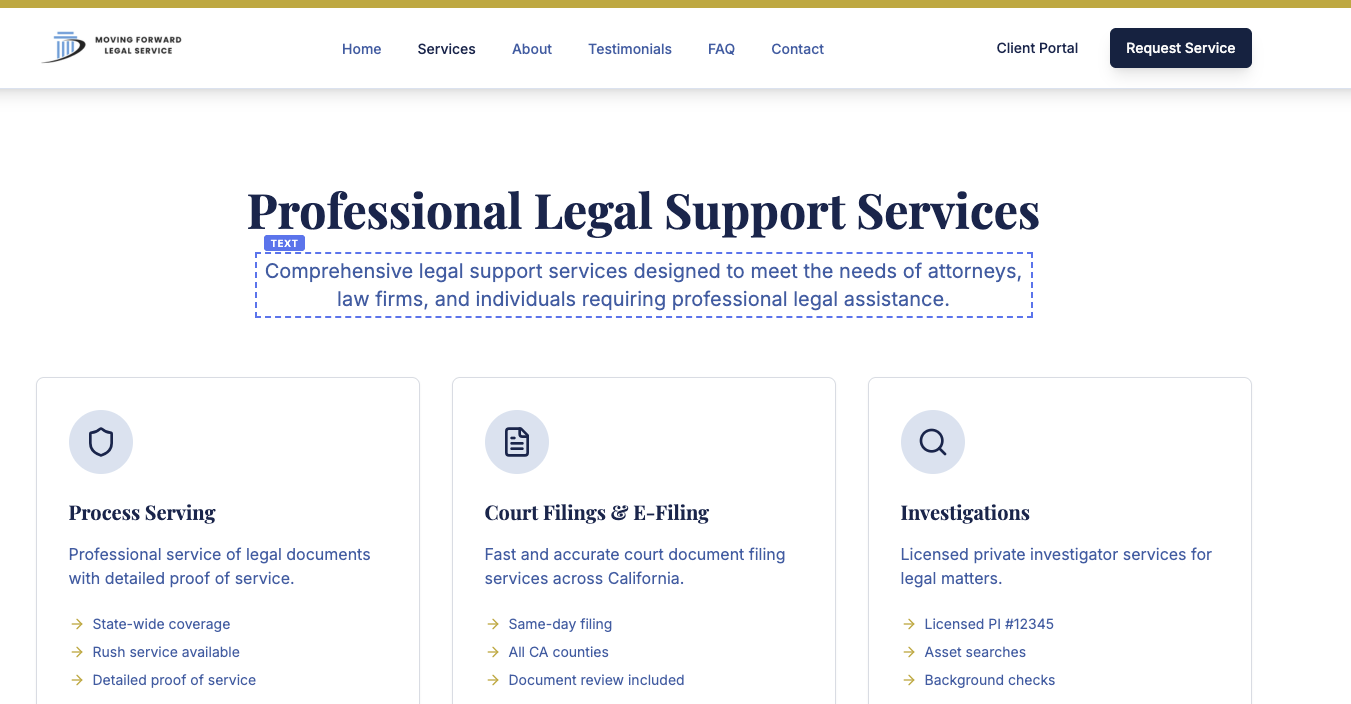
In edit mode, editable elements show a blue dashed outline on hover. Click any highlighted region to open the toolbar or popover for that element type.
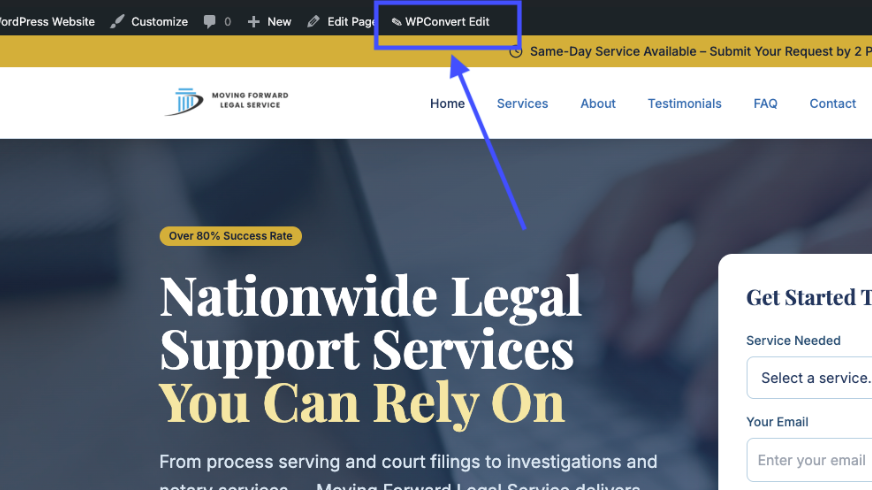
Do not use Pages → Edit for converted content
The WordPress block editor and Pages → Edit do not show WPConvert editable regions. Saved edits are applied when visitors load the page through your theme templates.
Converted pages relabel the admin bar button to Page Settings — it opens the normal WordPress screen for title, URL, template, and SEO fields. That screen includes a notice linking back to the front-end editor for the page you were viewing.
Pages you create yourself in WordPress (not from conversion) keep the standard Edit Page button because the block editor is the right tool for those.
What you can edit
All plans
| Element | How to edit |
|---|---|
| Headings (h1–h6) | Click to edit inline; save when done |
| Text & paragraphs | Click any paragraph; same inline flow |
| Images | Click to set URL or pick from Media Library; set alt text |
| Buttons | Edit label and link URL via popover |
Pro, Agency, and PAYG (editor PRO features)
| Element | How to edit |
|---|---|
| Links | Edit existing footer/CTA URLs, or highlight words in a heading/paragraph and turn them into a blue underlined hyperlink |
| Landing | Name a heading or paragraph so in-page links (#pricing) can jump to it |
| Lists | Add, remove, reorder, and rename list items |
| Backgrounds | Change background color or image; option to remove |
| Sections | Hide or show entire sections with the eye icon |
| Video embeds | Swap URLs on HTML5 video and YouTube/Vimeo embeds |
Edits save via AJAX to the WordPress database. Layout and styling stay the same.
Turn selected text into a hyperlink (Pro)
Existing footer links and CTAs open a URL popover when you click them. To create a new link inside a heading or paragraph:
- Click the heading or paragraph so the inline toolbar appears.
- Highlight the word or phrase you want to link.
- Click Link, paste a URL (
https://…or an in-page hash like#contact), and optionally check New tab. - Click Apply — the words turn blue and underlined.
- Click Save.

Apply wraps the selection. Save stores it. If you only click Save, the words stay plain text. Click Remove to unwrap a link without deleting the words.
Two things are worth knowing. Highlighting disappears the moment the URL field takes focus — that is expected, because the editor saves your selection before moving the cursor into the field, and Apply uses the saved selection. And the panel tells you what happened: if it says "Select the words you want to link, then press Apply", the selection was lost, so highlight again and retry.
Build an in-page jump link (Pro)
A jump link has two halves, and you need both. The Link control writes the half that is clickable. The Landing control names the place it lands.
1. Create the destination. Prefer clicking the section you want to land on — Section options now includes a Landing name field. Type pricing and Apply. Or click a heading/paragraph and use Landing on the text toolbar. While editing you will see a #pricing chip. That chip is a label, not a button. Visitors never see it.
If the section already has a name from the original site, reuse it in Link (#contact). Changing or removing that name asks for confirmation so existing jump links stay intact.
2. Create the link. Click the text you want to jump from, highlight the words, click Link, and enter the same name with a # in front — #pricing. Click Apply, then Save.
That is the whole flow. The page scrolls smoothly to the anchor, and the theme offsets the scroll so a sticky header does not cover the heading.
A few things the editor now handles for you:
#pricingandpricingmean the same thing in the Anchor field.- Spaces become hyphens, so
Our Servicesis stored asOur-Services. - If you type
id="pricing"into the Link field, the editor tells you that an id is a destination and points you at Landing instead. This is the most common mix-up: anidis not something you link to in the URL box, it is what you create on the target. - Pasting
a href="#pricing"into the Link field works — the editor strips the attribute wrapper and keeps#pricing.
Click Remove in the Landing card to delete a destination. If a jump link does nothing, the destination is almost always missing: open the target block and check that Landing shows the name your link points at.
Anchors you set in the editor live in the WordPress database like any other edit, so they survive theme updates but not a re-convert of the same site.
Roles and permissions
By default, Administrators and Editors can open the front-end editor.
Site administrators can enable or disable other roles under:
- Content Editor (Pro/Agency) → Who can use the front-end editor?
- WPConvert (Starter) → Who can use the front-end editor?
Administrator is always enabled. Editor is on by default. Saving updates WordPress capabilities immediately — no theme file edits required.
Editors can change existing content without access to theme files or Appearance settings.
White-label labels (Pro and Agency)
Pro and Agency themes use neutral labels automatically:
- Admin bar: Edit Content
- wp-admin menu: Content Editor
- No WPConvert branding in normal client workflows
Starter themes show WPConvert Editor in the admin bar.
To pick up the latest white-label labels on an existing theme, replace inc/wpconvert-editor.php with the latest version or re-convert.
Works with CPT and WooCommerce content
The editor and the WPConvert CPT plugin are designed to work together:
- Static page content (headings, paragraphs, images outside CPT loops) — editable via the front-end editor
- CPT card grids (rooms, services, team cards) — managed from wp-admin via the CPT plugin guide
- WooCommerce products — managed from Products in wp-admin via the WooCommerce import guide
CPT field values are stored as post meta and rendered via the loop swap. They are not edited through the front-end editor.
Troubleshooting
Hover outlines appear but clicks do nothing
Usually a JavaScript error earlier in the page stops the editor script from running. Check the browser console for syntax errors in inline scripts from the original site export. Re-converting with the latest WPConvert build often resolves this — the pipeline wraps risky inline scripts to prevent one failure from killing the editor.
I highlighted a word but it did not become a link
Click Apply in the Link panel before Save. Apply wraps the selection (the word should turn blue and underlined immediately). Save then stores that HTML. The panel now reports the outcome — if it says "Select the words you want to link", the selection was lost, so highlight again and press Apply. Replace inc/wpconvert-editor.php with the latest version if your theme predates this control.
My #anchor link does not scroll anywhere
The destination is missing. A jump link needs a matching Landing on the block you want to land on — the # link alone has nothing to find. Click the target heading, press Landing, type the name without the #, then Apply and Save. Note that id="name" typed into the Link field does not create a destination; that is what Landing is for.
Footer links or nav CTAs not editable
Footer links inside <footer><nav> and some CTA buttons need data-wpc-editable="link" markers from conversion. Re-convert with the latest build if links in those regions are missing badges. Hash destinations like #contact need a re-convert as well — replacing the editor file alone does not add those markers.
Changes revert after reload
Confirm you clicked Save in the editor popover. If a specific button reverts while others save, the element may be inside a region the editor treats as a section background — click the button itself, not the surrounding hero area.
Editor updates after a fix
The editor ships inside your theme. For editor-only fixes without a full re-conversion, replace inc/wpconvert-editor.php in your active theme with the latest version from a fresh WPConvert export.
Step-by-step: first edit after conversion
- Convert your AI-built site with WPConvert and download the theme ZIP.
- Install the theme in WordPress and activate it.
- Log in and visit your homepage.
- Click Edit Content (or WPConvert Editor on Starter).
- Click a heading, update the text, and save.
- Exit edit mode and reload — your change should persist.
- Hand off to clients: create an Editor role user and point them to the front-end editor, not Pages → Edit.
For a visual walkthrough, see Edit My Theme in the dashboard.