Optimize Before WPConvert — Checklist Moved to Guides
The full pre-conversion checklist and copy-paste AI builder prompt now live in our Guides hub. This post explains why a 10-minute prep pass saves hours of theme cleanup.
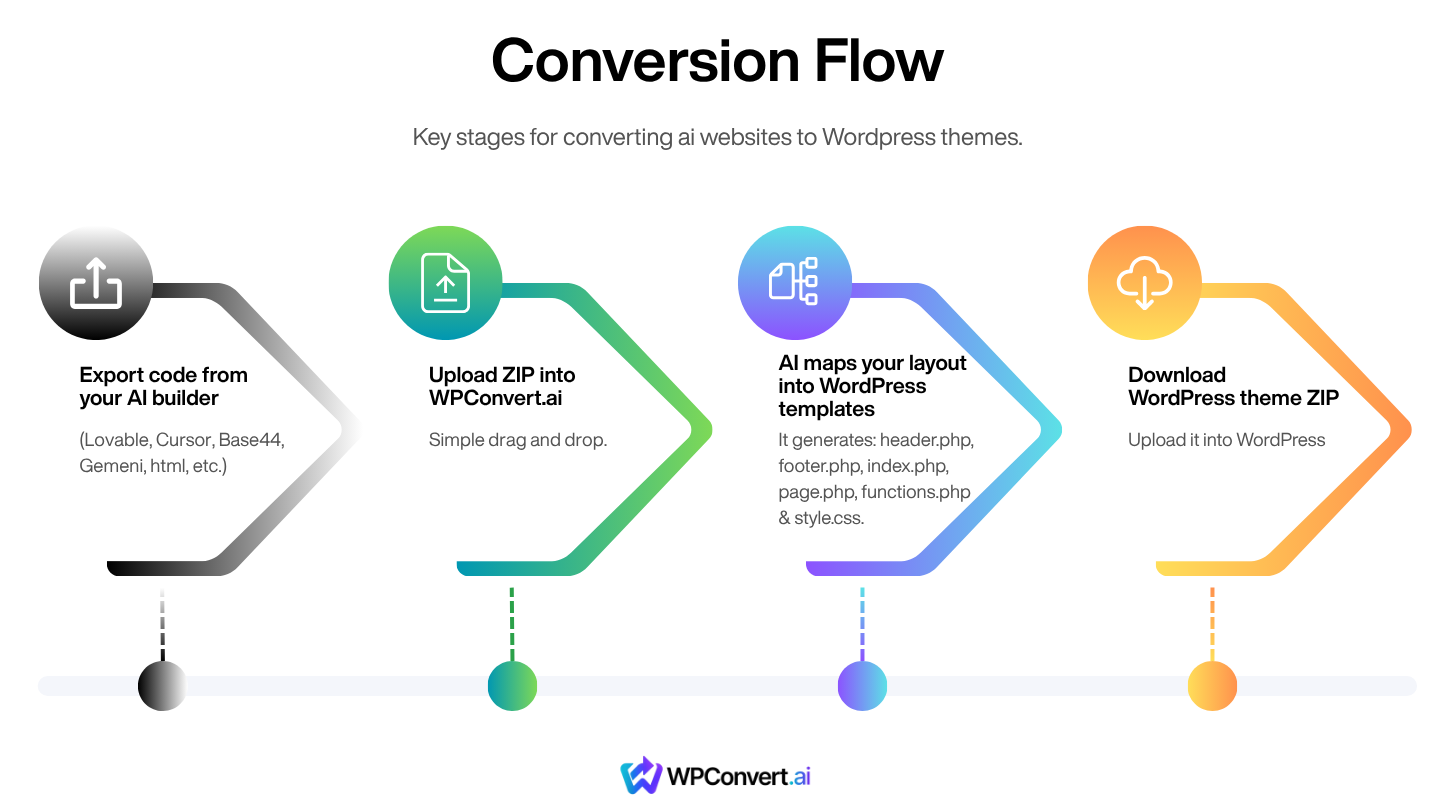
WPConvert turns exported HTML, CSS, and JavaScript — including Vite and React projects — into an installable WordPress theme. Conversion quality depends on what is actually in the markup when we analyze your site, not what appears only after JavaScript runs.
When we first published this article, it doubled as the full checklist. That content now lives in one maintained place:
Optimize before WordPress conversion →
That guide includes navigation rules, DOM structure patterns, animation pitfalls, form markup, image handling, and the copy-paste prompt you can drop into Lovable, Bolt, v0, Cursor, or Replit. This post explains why the prep pass matters — without repeating every bullet from the canonical page.
Why we moved the checklist to /guides/
Blog posts age quickly when product edge cases change weekly. Guides are where we maintain production checklists that ship alongside the in-app Conversion Guide UI. One source of truth means fewer "missing FAQ tab" support tickets and faster updates when we see new builder patterns in the wild.
If you are about to upload a ZIP to WPConvert, open the canonical guide first. Ten minutes of targeted fixes often beats an hour of post-conversion PHP edits.
The problems we see most often
AI builders and SPAs optimize for interactivity: client-side routing, conditional rendering, scroll-driven motion. WordPress themes need stable HTML — sections, links, and forms that exist in the document without relying on hydration order.
These four patterns cause the majority of incomplete themes:
- Button-based navigation — Primary nav built with
onClick+navigate()instead of real<a href>or<Link to>links. Destinations vanish from the export. - Unmounted panels — Tabs, FAQs, and carousels that render only
{activeTab === "x" && <Panel />}. Inactive content never reaches the theme. - Invisible-by-default sections — Whole blocks stuck at
opacity-0or off-screen transforms. If animation JS fails, the page looks empty. - Frontend-only forms — Inputs without
<form>,nameattributes, or submit semantics. They do not map cleanly to Contact Form 7, WPForms, or Gravity Forms later.
You are not "dumbing down" the site. You are making the export honest about what each page contains.
What a good prep pass looks like
Teams that convert cleanly usually touch only high-leverage areas:
- Swap primary nav, logo, phone, and email to real links (
tel:/mailto:included) - Keep tab panels, FAQ answers, and carousel slides in the DOM — hide inactive items with CSS
- Default modals and sheets to closed so overlays do not block the snapshot
- Ensure hero images use real
srcandalt, not JS-only lazy loaders - Defer multilingual toggles, live chat, and cart logic to WordPress plugins after conversion
Static HTML sites follow the same rules. The Builders hub links platform overviews when you want export-specific context before you optimize.
Project settings that quietly break exports
Beyond markup, a few config choices cause confusing partial conversions:
- Vite
basenot set to/unless you truly deploy to a subdirectory — mismatched base paths break asset URLs in the theme - React Router
basenamesurprises when it does not match production - Stale HTML files in
public/that collide with SPA routes
The canonical guide lists these under tooling checks. Fixing them before upload is faster than debugging missing CSS after download.
Real-world impact
We published this companion because support volume dropped once teams adopted the pre-conversion prompt. Missing FAQ answers and dead nav CTAs were the top "incomplete theme" reports — both preventable without a redesign.
If you already shipped with button-based nav, search-and-replace the worst offenders (primary nav, logo, phone, email), re-export, and reconvert. For Framer sites, avoid initial={{ opacity: 0 }} on body copy — the guide explains the initial={false} pattern.
After the checklist: convert and launch
When the guide checklist looks good, export your project and upload to WPConvert. For builder-specific workflows, see Convert — for example Convert Cursor to WordPress or Convert static HTML to WordPress.
Post-conversion, pair this prep work with SEO for converted themes and Host WordPress after conversion when you are ready to go live.
FAQ
Do I have to rebuild my entire site?
Usually not. Most teams adjust navigation primitives, unmount patterns, and default animation states — targeted changes with outsized impact on conversion quality. The full list is in the canonical guide.
Where is the copy-paste prompt for my AI builder?
In the Optimize before conversion guide and the in-app Conversion Guide under Before You Convert. We keep those aligned with production edge cases.
Does this apply to static HTML sites too?
Yes — real links, content in the DOM, proper form tags, and images with real src attributes matter regardless of whether the source came from an AI builder or hand-coded files.