Introducing the WPConvert CPT Plugin
Turn repeating AI-generated content into real WordPress Custom Post Types. The WPConvert CPT Plugin auto-detects rooms, services, team cards, products, and more — then lets you add, edit, reorder, and publish from wp-admin. Works with built-in edit panels, ACF (free or Pro), or Meta Box with MB Builder.
Turn Repeating AI Content Into Real WordPress Custom Post Types — Without Rebuilding Your Design.
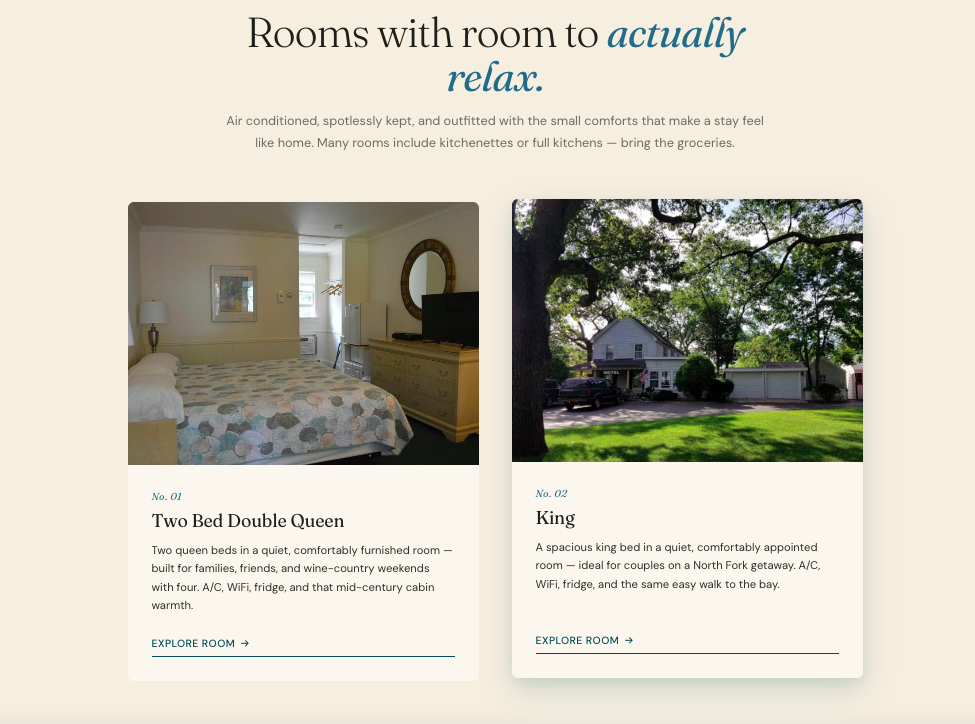
AI website builders are great at generating card grids, room listings, service menus, team rosters, and product showcases. But after conversion to WordPress, that content is usually frozen in static HTML — every room, service, or team member is hard-coded into the theme.
Want to add a new room? Edit a service description? Reorder your team cards? You'd have to open PHP templates or ask a developer.
WPConvert CPT Plugin fixes that.
During Pro conversion, WPConvert detects repeating content patterns in your source and turns them into Custom Post Types you can manage from the WordPress admin — while your original design, spacing, and layout stay exactly as they were.
Summary (TL;DR): On PRO, Agency, and PAYG plans, WPConvert scans your AI-built site for repeating content arrays (rooms, services, team members, products, portfolio items, and more). It stamps your theme HTML with passive markers, writes a cpt-candidates.json manifest, and bundles the WPConvert CPT Plugin (plugins/wpconvert-cpt.zip) in your theme download. Install and activate the plugin, click "Activate" on the CPTs you want in the "WPConvert Custom Post Types Available" admin notice, and your static card grids become live WP_Query loops — editable, reorderable, and publishable from wp-admin. Use WPConvert's built-in edit panels, or opt into ACF (free or Pro) or Meta Box per CPT. For Meta Box, install Meta Box Lite or Meta Box + MB Builder — the base Meta Box plugin alone is not enough.
Why Repeating Content Breaks After AI → WordPress Conversion
Most AI builders store card grids and listings as front-end data arrays:
- Rooms defined in a
rooms.tsor JSX constant - Services in a
servicesarray - Team members in a
teamMembersexport - Products in a static product list
When that site is converted to a WordPress theme:
- The arrays become hard-coded HTML in PHP templates
- There is no wp-admin UI to add, edit, or remove items
- Reordering means editing template files
- Detail pages (e.g.
/rooms/ocean-view) stay static or don't exist as separate posts - Homepage preview grids and full listing pages can't be managed independently
AI builders design repeating sections visually. WordPress needs post types to make them manageable. The WPConvert CPT Plugin bridges that gap by detecting those patterns at conversion time and registering real Custom Post Types at runtime.
What the WPConvert CPT Plugin Actually Does
The plugin is included in your theme download when WPConvert detects repeating content — on PRO, Agency, and PAYG plans. You upload wpconvert-cpt.zip from the theme's plugins/ folder, activate it, then opt in to the CPTs you want from the admin notice.
1. Detects Repeating Content During Conversion
When you upload your AI-built site, WPConvert's CPT candidate detector:
- Walks your source (TSX, JSX, TS, JS) and finds top-level arrays of 3+ shape-similar objects — the React pattern behind card grids and listings
- Classifies each field by inspecting sample values: image, URL, date, number, text-short, text-long, select, and more
- Stamps passive DOM markers on matching HTML grids (
data-wpc-cpt-candidate,data-wpc-cpt-item-template) so runtime code can locate them without re-scanning - Writes a manifest (
assets/data/cpt-candidates.json) with field definitions, sample items, and section keys for forward-compatible reconversion
So the plugin knows exactly which repeating sections exist, what fields each item has, and where they appear in your theme.
2. Registers Custom Post Types on Opt-In
Instead of auto-registering everything (which could collide with existing plugins), the CPT plugin:
- Shows an admin notice — "WPConvert Custom Post Types Available" — listing each detected CPT with an Activate button
- Registers only the CPTs you activate in
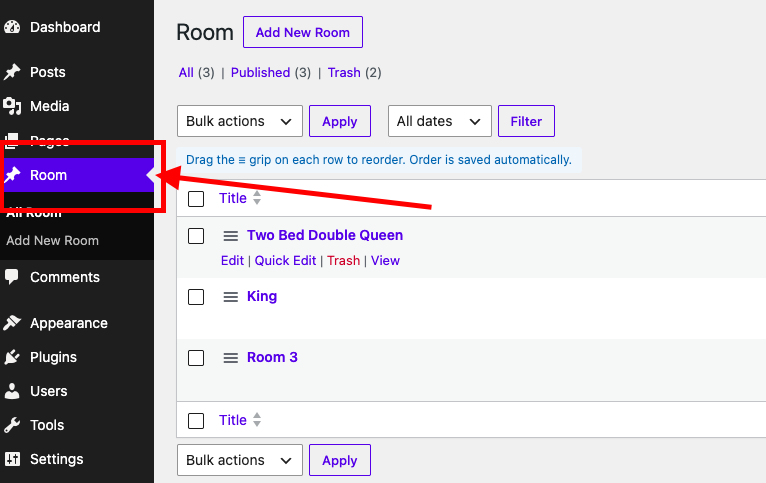
wp_options['wpconvert_cpts']— fully reversible; deactivate a CPT and the front-end reverts to static markup - Creates wp-admin menus for each activated CPT with standard WordPress post editing
- Skips collisions — if another plugin already owns a slug, WPConvert skips it rather than clobbering
You stay in control. Nothing changes on the front-end until you click Activate.
3. Built-In Edit Panels for Every Field
For each activated CPT, the plugin builds WordPress-native edit panels from the detected field schema by default — no third-party field plugin required. Prefer ACF or Meta Box? You can opt into those instead (see sections 6 and 7):
- Text fields — short labels, headings, prices, badges
- Long text — descriptions, body copy, room details
- Images — featured images and inline image fields (resolved from your converted assets)
- URLs — links, booking URLs, external references
- Numbers and dates — pricing, capacity, event dates
- Select / enum fields — categories, status badges, room types
No hand-coding register_post_meta or building custom admin UIs. The detector's field classification becomes your edit screen.
4. Loop Swap — Static Grids Become Live Queries
This is where the design preservation happens. At page render time, the CPT plugin's output-buffer loop swap:
- Finds stamped sections in your theme HTML via
data-wpc-cpt-candidatemarkers - Replaces the static item template with a
WP_Queryloop over your CPT posts - Substitutes field values (title, image, description, custom meta) into the original card markup
- Preserves your CSS classes, nesting, and responsive breakpoints — only the data source changes
Your room cards look identical. They're just powered by WordPress posts now.
5. Reorder, Publish, and Import Content
Once CPTs are active:
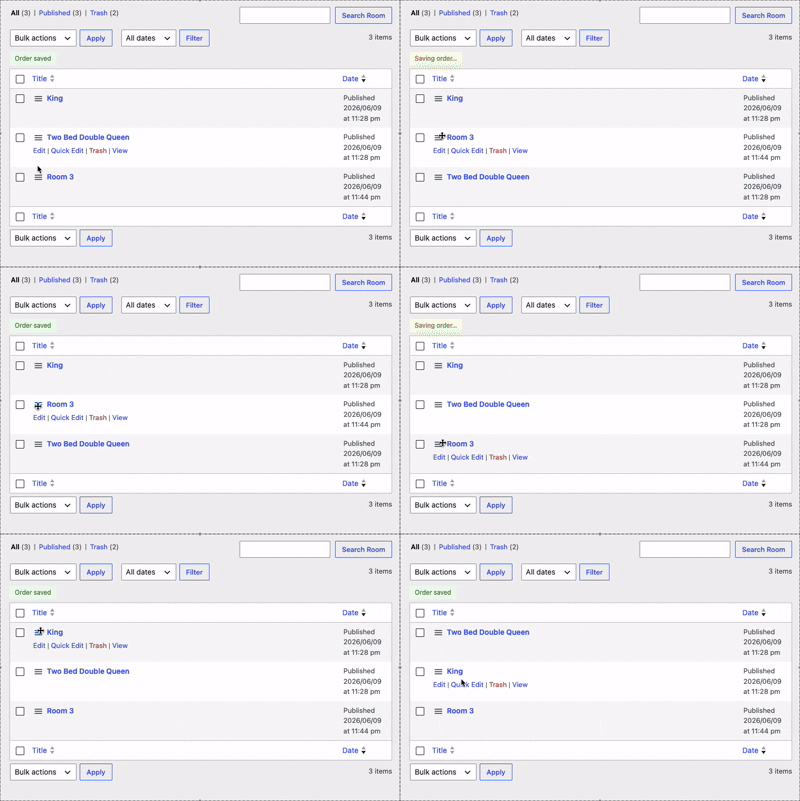
- Reorder items via drag-and-drop on the post list screen (menu_order) — your front-end grid respects the new order
- Publish / draft / trash items using standard WordPress workflows
- Import detected items from the manifest in one click — your source array data becomes real posts with featured images and meta fields populated
- Add new items anytime from wp-admin; they appear in the loop automatically
Homepage preview grids and full listing pages can become separate CPTs when layouts differ — e.g. compact room cards on the homepage vs. full room listings on /rooms.
6. Works With ACF (Free or Pro)
Already using Advanced Custom Fields on client sites? The CPT plugin integrates with ACF free and ACF Pro out of the box.
When ACF is installed, the activation UI shows a per-CPT "Manage with ACF" checkbox. Opt in and WPConvert:
- Auto-creates an ACF field group with one field per detected CPT field (text, textarea, image, number, select, date, URL, and more)
- Hides WPConvert's built-in edit panel for that CPT so ACF's UI handles editing
- Reads values via
get_field()in the front-end loop swap when ACF is active - Falls back gracefully — if ACF is deactivated later, WPConvert's built-in edit panel reappears and the loop swap reads
_wpc_field_*post meta so nothing breaks on the front-end
Imported source data is dual-written into ACF-shaped meta keys so fields populate correctly in the ACF editor on day one. Field groups are DB-stored and fully editable in the ACF UI after creation — add fields, change layouts, or tweak validation without touching WPConvert code.

7. Works With Meta Box (MB Builder)
Prefer Meta Box for client field editing? The CPT plugin integrates with Meta Box + MB Builder the same way it does with ACF.
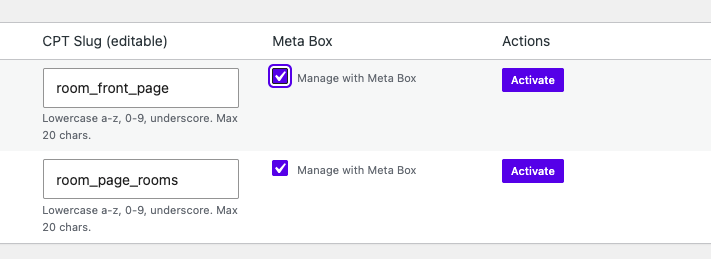
Important — Meta Box core alone is not enough. Installing the base Meta Box plugin from WordPress.org gives you the field API (rwmb_meta()), but WPConvert's Meta Box integration also requires MB Builder — the visual field-group builder that defines MBB_VER. Without MB Builder, the "Manage with Meta Box" checkbox will not appear. WPConvert's built-in edit panels still work; you just won't get the Meta Box opt-in.
How to set up Meta Box for WPConvert CPT:
| Option | What to install | Result |
|---|---|---|
| Easiest | Meta Box Lite (bundles Meta Box core + MB Builder) | Both requirements met in one plugin |
| Separate plugins | Meta Box core + MB Builder extension | Both must be installed and activated |
Install Meta Box (or Meta Box Lite) before activating your CPTs, then reload wp-admin. Go to Tools → WPConvert CPTs (or the activation notice) — you should see a Meta Box column with a "Manage with Meta Box" checkbox per CPT.
When MB Builder is detected, opt in and WPConvert:
- Auto-creates a Meta Box field group stored in the database and editable in MB Builder's Custom Fields UI
- Maps detected field types to Meta Box equivalents (text, textarea, single_image, number, select, switch, date, URL, and more)
- Hides WPConvert's built-in edit panel for that CPT so Meta Box handles editing
- Reads values via
rwmb_meta()in the front-end loop swap when Meta Box is active - Falls back gracefully — if Meta Box is deactivated later, WPConvert's built-in edit panel reappears and the loop swap reads stored post meta so the front-end keeps working
Imported source data is dual-written into Meta Box field IDs (bare post-meta keys) so fields populate correctly in MB Builder on day one. Field groups are fully editable after creation — add fields, change layouts, or tweak validation in the Builder UI without touching WPConvert code.
Notes:
- Meta Box core ≠ MB Builder. The free Meta Box library and the MB Builder extension are separate products. WPConvert needs both (or Meta Box Lite, which includes both).
- Install order matters for the checkbox. If you activated CPTs before installing MB Builder, reload the Pending tab — the Meta Box column appears only when MB Builder is active at activation time.
- ACF vs Meta Box per CPT. Each CPT uses one field plugin. Check "Manage with ACF" or "Manage with Meta Box" — not both for the same CPT. If both are selected, ACF takes priority.
How It Works Under the Hood
For developers and agencies who want the technical picture:
- During conversion (Ship 1), the CPT candidate detector runs on Pro/Agency/PAYG tiers only. It emits
cpt-candidates.jsonwithschema_version: 1, stamps DOM markers on matched grids, and leaves Starter conversions byte-identical. - At install time (Ship 2),
wpconvert-cpt.zipis a standalone WordPress plugin. It reads the manifest, gates onwpconvert_editor_is_pro(), and registers post types only for slugs inwp_options['wpconvert_cpts']. - On render (Ship 3), the loop swap walks the output buffer, locates stamped sections, and expands the first item template into an N-item
WP_Queryloop. Field substitution uses_wpc_field_*post meta written by the importer. - In wp-admin (Ship 4), the activation notice, import UI, reorder handles, and built-in edit panels give non-technical users a complete CMS workflow. ACF interoperability (Ship 4c.1): opt in per-CPT to auto-generate an idempotent ACF field group, set
acf_managed, suppress the built-in panel, and dual-write imported values. Meta Box interoperability (EC-CPT-008): same opt-in flow for MB Builder — auto-creates a DB-stored field group via MB Builder's parser, setsmetabox_managed, dual-writes bare field IDs, and reads viarwmb_meta()in the loop swap. ACF and Meta Box are mutually exclusive per CPT (ACF wins if both are selected). - Native blog override: When your theme already has a native WordPress blog (
WPCONVERT_NATIVE_BLOG), blog-shaped candidates are skipped — WordPress's built-inposttype owns that content instead of a duplicate CPT.
Unlike converters that dump everything into static HTML or force content into page-builder widgets, WPConvert keeps your DOM structure and swaps only the data layer underneath.
Who Should Use the WPConvert CPT Plugin
- Hotels and motels converting room listings from AI-built sites who need staff to add, edit, and reorder rooms without touching code
- Agencies migrating client sites with service grids, team pages, or portfolio sections that need ongoing content management
- Restaurants and local businesses with menu items, specials, or location cards that change frequently
- Freelancers converting static or AI-generated sites who want clients to manage repeating content from wp-admin
- Developers and agencies already standardized on ACF or Meta Box who want detected fields to map into their existing field-plugin workflow
- Developers who want clean WordPress architecture (real post types + meta) without hand-registering CPTs for every conversion
- Anyone who needs to convert AI card grids to WordPress post types without rebuilding the design
Example: AI Room Listings → WordPress Custom Post Type
- Upload your AI-built site (with a rooms grid and optional
/roomsdetail page) to WPConvert and convert with a PRO, Agency, or PAYG plan. - Download the theme ZIP; inside is a
plugins/folder with wpconvert-cpt.zip and anassets/data/cpt-candidates.jsonmanifest. - Install the theme in WordPress (Appearance → Themes → Upload Theme) and activate it.
- (Optional — ACF or Meta Box) If you want a third-party field plugin instead of WPConvert's built-in panels:
- ACF: Install and activate ACF free or ACF Pro.
- Meta Box: Install and activate Meta Box Lite or Meta Box + MB Builder together. Meta Box core alone will not show the Meta Box opt-in.
- Go to Plugins → Add New → Upload and install wpconvert-cpt.zip. Click Install Now, then Activate.
- Look for the "WPConvert Custom Post Types Available" admin notice at the top of the dashboard (or open Tools → WPConvert CPTs).
- Click "Activate" on the CPTs you want (e.g.
room,service,team_member). If ACF or MB Builder is active, you'll see optional "Manage with ACF" or "Manage with Meta Box" checkboxes — check one per CPT if desired. - Import the detected items from the notice — your source array data becomes WordPress posts with images and fields populated.
- Visit your site — the room cards now render from
WP_Query. Add a new room in wp-admin; it appears on the homepage grid and listing page automatically.
Your AI room listings are now a real, manageable WordPress Custom Post Type with zero design rebuild.
AI Repeating Content: Generic Converters vs WPConvert
| Feature | Generic converter | WPConvert CPT Plugin |
|---|---|---|
| Detects repeating arrays | No | Yes (source + DOM) |
| Registers Custom Post Types | Manual | Auto (opt-in) |
| Preserves original card design | Often broken | Yes (loop swap) |
| Built-in admin edit panels | No | Yes |
| ACF field plugin support | No | Yes (opt-in per CPT) |
| Meta Box field plugin support | No | Yes (requires Meta Box + MB Builder, or Meta Box Lite) |
| Reorder from wp-admin | No | Yes (menu_order) |
| Import source data as posts | No | Yes (one-click) |
| Separate homepage vs. listing CPTs | No | Yes (when layouts differ) |
| Bundled in theme download | No | Yes (wpconvert-cpt.zip) |
Tone is professional and factual.
How to Convert AI Card Grids to WordPress Post Types
If you're dealing with static room listings, hard-coded service cards, or team grids you can't edit in WordPress, the fix is to give repeating content a proper post type backend:
- Convert with WPConvert (PRO, Agency, or PAYG) so the pipeline runs CPT detection and bundles the plugin.
- Install and activate
wpconvert-cpt.zipfrom your theme'splugins/folder. - Activate the CPTs you want from the admin notice — nothing changes on the front-end until you opt in.
- Import your source items so existing rooms, services, or team members become real posts with images and meta.
- Manage content from wp-admin — add, edit, reorder, publish, and draft items while your converted design stays intact.
The WPConvert CPT Plugin is built for this: make AI repeating content manageable in WordPress without rebuilding card layouts or hand-coding post types for every project.
FAQ
Do I need Elementor for this?
No. The WPConvert CPT Plugin works with any WPConvert theme. It registers post types, swaps static loops at render time, and provides wp-admin editing. Elementor is not required.
Does it work with the WPConvert Edit Plugin?
Yes. The CPT plugin and the Edit Plugin are designed to work together. CPT field edits are stored as post meta and rendered via the loop swap. Static page content (headings, paragraphs, images outside CPT loops) remains editable via WPConvert Edit.
Will activating a CPT break my layout?
No. The loop swap replaces only the data inside your stamped card template. CSS classes, nesting, spacing, and responsive breakpoints are preserved. If you deactivate a CPT, the front-end reverts to the original static markup.
Does it auto-register every detected CPT?
No. Registration is opt-in. The admin notice lists detected candidates; you click Activate on the ones you want. This prevents collisions with existing plugins and lets you skip sections you prefer to keep static.
What content patterns does it detect?
Common patterns include: room/hotel listings, service grids, team member cards, product showcases, portfolio items, testimonial cards, pricing tiers, FAQ entries, and any React/JSX array of 3+ shape-similar objects with 2+ fields. Navigation menus, headers, and footers are explicitly excluded.
Can homepage previews and detail pages be different CPTs?
Yes. When your homepage has a compact preview grid and a separate /rooms (or similar) page with a different layout, WPConvert can detect and register them as separate CPTs — each with its own admin menu and loop swap target.
What about blog posts?
If your conversion already includes a native WordPress blog (detected blog sections converted to post type with WP_Query loops), blog-shaped candidates are skipped. WordPress's built-in Posts UI manages that content — no duplicate CPT.
Does it support ACF (Advanced Custom Fields)?
Yes — ACF free and ACF Pro. During activation, check "Manage with ACF" on any CPT you want ACF to handle. WPConvert auto-creates a field group mapped from the detected schema, hides its built-in edit panel for that CPT, and reads values via get_field() on the front-end. If ACF is deactivated later, WPConvert's built-in edit panel reappears and the loop swap falls back to stored post meta — no data loss.
Does it support Meta Box or Meta Box Pro?
Yes — when Meta Box core and MB Builder are both installed and active. During activation, check "Manage with Meta Box" on any CPT you want Meta Box to handle. WPConvert auto-creates a field group mapped from the detected schema (editable in MB Builder's Custom Fields UI under Meta Box → Custom Fields), hides its built-in edit panel for that CPT, and reads values via rwmb_meta() on the front-end. If Meta Box is deactivated later, WPConvert's built-in edit panel reappears and the loop swap falls back to stored post meta.
The easiest path is Meta Box Lite, which bundles both. Alternatively, install Meta Box and add the MB Builder extension separately.
Why didn't WPConvert detect Meta Box after I installed it?
This usually means MB Builder is missing. The base Meta Box plugin is a lightweight field library — it does not include the visual builder WPConvert needs to auto-create and edit field groups. WPConvert checks for both rwmb_meta() (Meta Box core) and MBB_VER (MB Builder).
Fix:
- Install Meta Box Lite (includes MB Builder), or install MB Builder alongside your existing Meta Box plugin.
- Activate the plugin(s) and reload wp-admin.
- Open Tools → WPConvert CPTs — you should now see a Meta Box column on the Pending tab.
- If you already activated CPTs without the checkbox, they use WPConvert's built-in panels. You can still manage content; to switch to Meta Box, use the Pending tab for unactivated CPTs or re-activate with "Manage with Meta Box" checked.
WPConvert is working correctly if you see built-in edit panels but no Meta Box checkbox — that just means MB Builder isn't active yet.
Can I use both ACF and Meta Box on the same site?
Yes — on different CPTs. Each CPT gets its own opt-in: "Manage with ACF" or "Manage with Meta Box". For a single CPT, only one field plugin can manage it. If both checkboxes are selected for the same CPT, ACF takes priority and Meta Box is skipped for that post type.
Is this available on Starter?
CPT detection and the plugin bundle are PRO, Agency, and PAYG features. Starter conversions capture repeating sections as static PHP templates. Upgrade to Pro to unlock Custom Post Type detection and management.
Don't Just Convert Repeating Content. Make It Manageable.
Convert with WPConvert (PRO, Agency, or PAYG), install the CPT Plugin from your theme, and activate the post types you need. You get real WordPress Custom Post Types for rooms, services, team cards, products, and more — editable, reorderable, and publishable from wp-admin while your AI-generated design stays intact.
- Start Converting — Upload your AI-built site and get a theme with CPT detection when repeating content is found.
- See How It Works — Explore conversion features and plugin setup in the dashboard.
Further Reading
- Introducing the WPConvert Edit Plugin — Make converted themes editable without breaking the layout.
- Introducing the WPConvert Forms Plugin — Wire AI-generated forms to Contact Form 7, WPForms, or Gravity Forms.
- Introducing WPConvert WooCommerce Import — Import AI-detected product catalogs as real WooCommerce products with one click.
- Why AI to Elementor Conversions Break — Why structural preservation matters when converting AI sites.
- Convert Lovable to WordPress — Turn Lovable.dev exports into WordPress themes with Pro features.
- Convert Static HTML to WordPress — Convert hand-coded sites into installable WordPress themes.